
Step-by-Step Guide to Ordering Your Print from Artbeat Studios
- Jul 24, 2025
- 3 min read
Updated: Nov 20, 2025

How to Order a Print on Artbeat Studios (It’s Easier Than You Think!)
Step 1: Select the Product
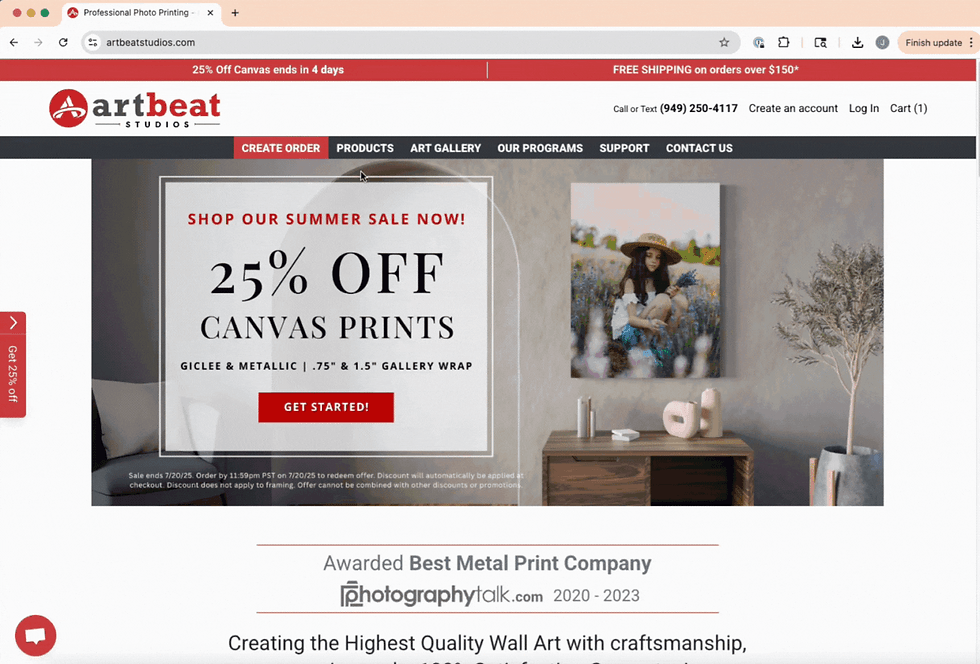
When you open up to Artbeat Studios, you will see Create Order in a red rectangle at the top left on the screen. Click Create Order
Step 1: Select the Product
Pick from 4 premium options:
Metal Print– Ultra-vibrant and Sleek
Acrylic Print– Luminous and modern with depth
Canvas – Soft texture, classic feel
Paper Print– Great for framing, glossy to fine art finishes
Not sure what to choose? Check out our guide on print types or compare photos here: https://www.artbeatstudios.com/products
Step 2: Upload Your Image

Drag ‘n’ drop image files in the red rectangle or you can click the red rectangle to upload your images. Once your images are uploaded, select the image you would like to work with and it will move you to step 3.
Note: You can only select one photo at a time
Need images to print first? Check out our post about how to make prints your art!
Step 3: Pick a Size
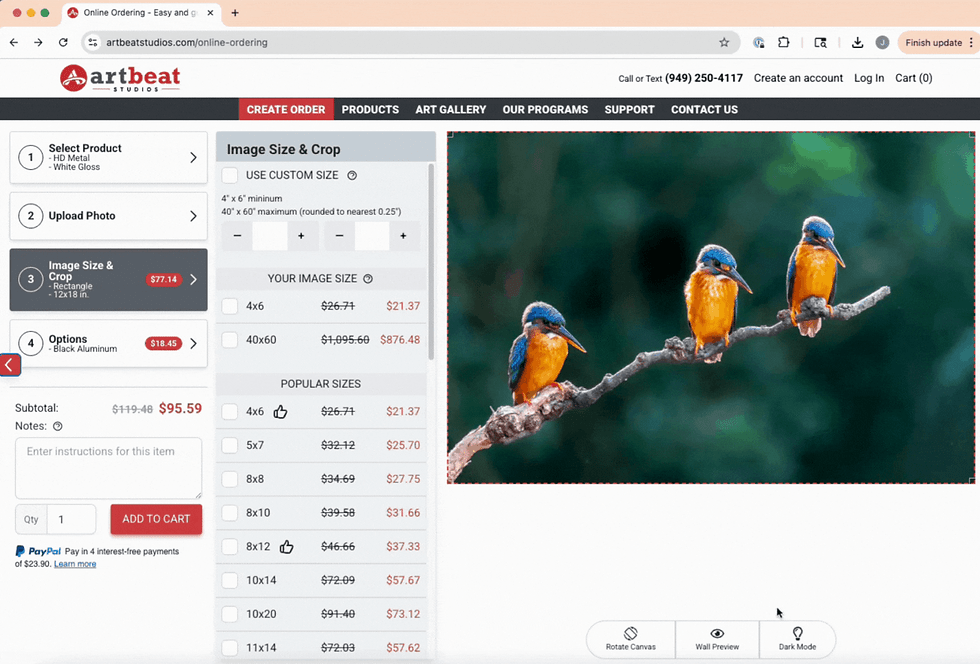
You can go with standard sizes or enter custom dimensions at the top of the page. We can print any custom size in quarter inch increments between the minimum and maximum size allowances.
If your photo doesn’t match perfectly, no worries—you’ll get cropping tools and resolution warnings to help guide you.

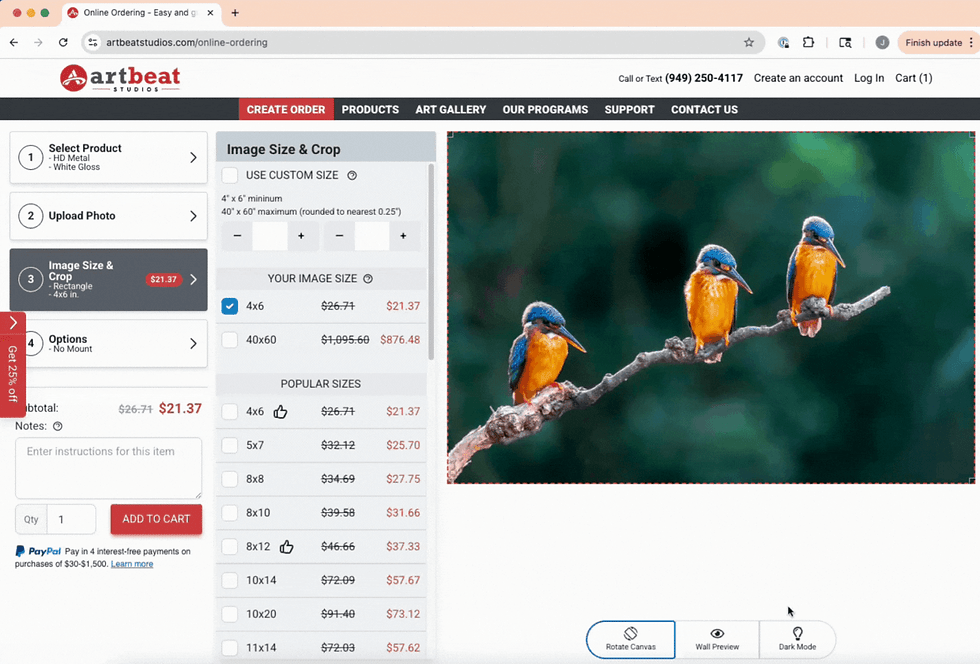
When there is a thumbs up on a size option, this means it matches the ratio of your image so there will not be any cropping done to your image
Rotate Canvas: Selecting “Rotate Canvas” at the bottom of the image will allow you to change the orientation of the crop from portrait to landscape or vice versa.
Step 4: Customize Your Print

Now for the fun part:
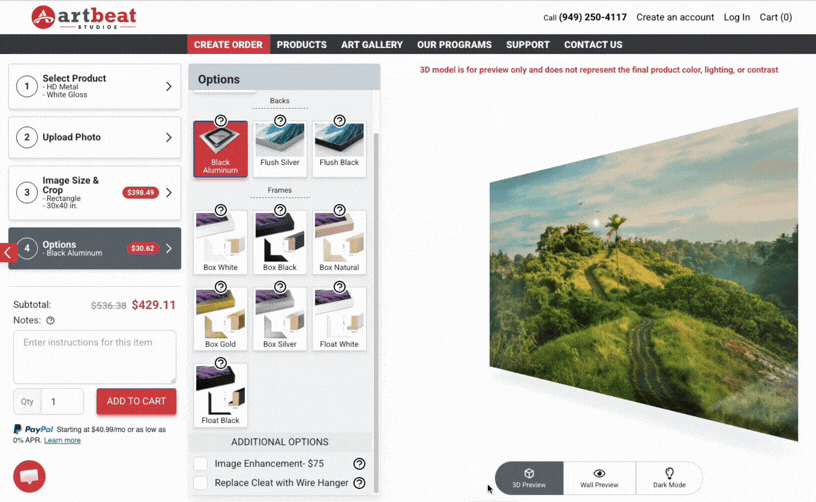
Choose a mounting option (aluminum mount, float mount, etc.) - or - Add a frame (optional for paper prints)
Scroll down to Additional Options, Select image enhancement, Replace Cleat with wire (depending on the product).
Review Your Order
Double-check your image, size, and options—then click Add to Cart
Step 5: Add to Cart & Checkout

Once you’ve customized your print and are happy with the preview, it’s time to check out:
Account or Guest Checkout
You can log into your Artbeat Studios account or simply enter your contact information to continue as a guest.
Order Note
Have a special request or would like us to review your images prior to printing? No problem! Simply leave your request here and the team will review it before your order begins production!
Choose Your Shipping Method
We offer flexible shipping options to fit your needs:
General Shipping – Standard delivery with Artbeat Studios listed on the shipping label.
White Label Dropship – No branding, invoices, or paperwork included—perfect for resellers or gifting.
In-Store Pickup – Pick up your order from our Santa Ana, CA studio and receive a 5% discount!
*For prints over 60" we will need to ship LTL Freight, please contact us for an estimate, or we will reach out to you once the order is placed.
Non-Contiguous U.S.: Shipping charges are based on destination. We will reaceh out with the cost after your order is received.
Expedited Shipping: Available upon request.
Promo Code
Have a promo code to apply to your order? You will enter that here in this section in the Promo Code field located directly above the totals section.
Payment Options
We accept all major payment methods, including:Credit Cards, PayPal, Apple Pay, and Google Pay
One Last Thing
Before placing your order, please take a moment to review our Terms & Conditions and Privacy Policy to make sure everything is clear.
You’re All Set! Click Place Order and we’ll get started on transforming your image into beautiful wall art.
Now you know how to order a print at Artbeat Studios!
Extra Tips
Use 150-300 DPI images for best results
If you're unsure, order a small test print like a 4x6 or 8x10 first. Reach out to support@artbeatstudios.com for clarification from the team!
💬 Still Have Questions?
Check out our FAQ, Print Specifications, or contact our team—we're here to help!
Ready to turn your image into wall art?


Comments